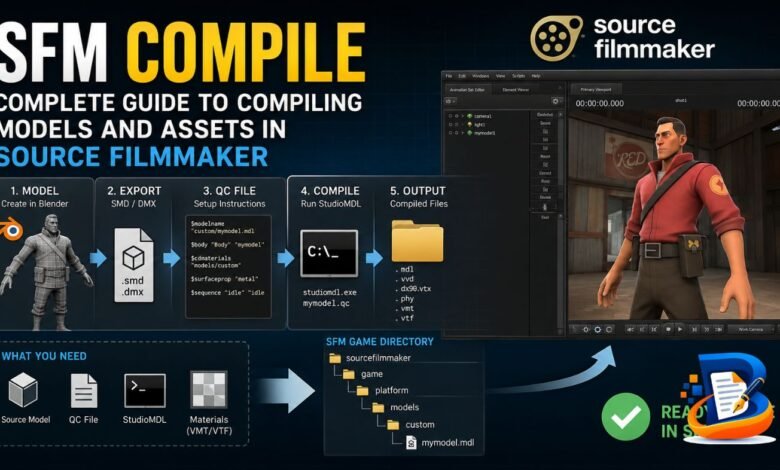
If you are searching for sfm compile, you are likely trying to understand how custom models, animations, textures, or other Source Filmmaker assets become usable inside SFM. The terminology can seem complicated at first, especially when you encounter QC files, SMD or DMX files, StudioMDL, materials, and compiled model files.
The basic idea is straightforward. You prepare your model in a compatible format, create a QC script that describes how Source should build it, and run the StudioMDL compiler. StudioMDL converts the intermediate model data into the binary model format that the Source engine can read.
This guide explains the SFM compile process in practical terms. You will learn what compilation means, what a QC file does, how StudioMDL works, how models and materials fit together, what happens after compilation, and how to diagnose common errors.
What Does SFM Compile Mean?
SFM compile refers to the process of converting prepared Source-compatible model data into files that Source Filmmaker can load.
A model created in a 3D application does not automatically become a usable Source model. Instead, creators commonly export the model into an intermediate format such as SMD or DMX. A QC file then tells StudioMDL how to build the model. StudioMDL processes those instructions and creates the binary model files used by the Source engine.
This process differs from rendering an SFM video.
Model compilation prepares an asset for use in a Source scene. Rendering takes an already prepared scene and produces the final image sequence or video.
Keeping these two processes separate makes SFM troubleshooting much easier.
Why Does Source Filmmaker Need Model Compilation?
Source Filmmaker relies on the Source engine’s asset system. The engine expects models to follow specific structures and formats.
When you create a model in Blender, Maya, or another 3D program, the project contains information designed for that software. Source needs a different representation.
Compilation bridges that gap.
The QC file provides the instructions, while StudioMDL performs the actual model conversion. Valve’s documentation describes StudioMDL as the command-line tool that compiles model data into the binary .mdl format used by Source.
The final model also relies on supporting files. Depending on the model, those files can contain vertex information, optimized rendering data, collision information, and other details.
The Main Files Used in SFM Compile
Understanding the file types helps you identify problems much faster.
| File type | Main purpose |
|---|---|
| SMD | Intermediate Source model, animation, or physics data |
| DMX | Another intermediate format that Source tools can process |
| QC | Instructions for StudioMDL |
| MDL | Main compiled Source model file |
| VVD | Vertex data used by the model |
| VTX | Rendering-related model data |
| PHY | Physics or collision data when the model uses it |
| VMT | Source material definition |
| VTF | Source texture data |
The exact combination depends on the model and the features that you include in the QC file.
Valve’s QC documentation confirms that QC scripts control the compilation process and can reference geometry, collision meshes, animations, model names, and other model information.
What Is a QC File?
A QC file acts as the instruction sheet for your model.
It is a plain-text script that tells StudioMDL what to compile and how to organize the resulting model. Valve describes a QC file as a script that controls the process of compiling SMD data into a binary model that the Source engine can load.
A simple QC file might look like this:
$modelname "props_custom/my_model.mdl"

$body "Body" "my_model"

$surfaceprop "metal"

$cdmaterials "models/props_custom"

$sequence "idle" "my_model"
This example demonstrates the basic concept rather than a complete production-ready character setup.
The $modelname command defines the output model path and filename.
The $body command references the main model geometry.
The $surfaceprop command defines a surface property.
The $cdmaterials command tells Source where to look for the model’s materials.
The $sequence command adds an animation sequence. Valve’s QC documentation provides similar basic examples for Source model compilation.
Important QC Commands for SFM Compile
Several QC commands appear repeatedly in Source model projects.
$modelname
This command determines the name and location of the compiled model.
For example:
$modelname "custom/robot/myrobot.mdl"The resulting path needs to match the directory structure that you want SFM to use.
An incorrect model path can create confusion because the compiler may finish successfully while SFM looks somewhere else for the asset.
$body
The $body command connects the QC file with the model geometry.
For example:
$body "Body" "myrobot"The referenced source file needs to exist where StudioMDL expects it.
Valve also notes that creators normally omit the .smd extension when they reference mesh and animation filenames in QC files.
$cdmaterials
This command defines the material search path.
For example:
$cdmaterials "models/custom/robot"If the model compiles but its textures do not appear correctly, check this path along with the VMT and VTF files.
$sequence
The $sequence command adds animation information.
A character that needs an idle animation, walk cycle, or other sequence can reference those animation sources through QC commands.
If an animation does not work, inspect the animation source, skeleton, sequence definition, and related QC configuration instead of assuming that the model itself failed.
Where Is StudioMDL?
The main model compiler is studiomdl.exe.
Valve’s documentation places StudioMDL in a game’s bin directory, under the relevant Source installation.
For a typical Source Filmmaker installation, you may find the executable under a path similar to:
Steam\steamapps\common\SourceFilmmaker\game\binYour actual Steam library may use a different drive or installation folder, so check your SFM installation rather than copying this path blindly.
How to Compile a Model for SFM
The process starts with a prepared model.
Suppose you created a prop in Blender. You first need to export the model into a format that the Source pipeline can process. Depending on the workflow, you may use SMD or DMX.
Next, create a QC file that references the exported model and defines the required model settings.
After that, run StudioMDL with the QC file.
The basic command has this structure:
studiomdl.exe path\to\your_model.qcValve’s documentation identifies the QC file as the required parameter for StudioMDL.
When StudioMDL runs, it prints information about the compilation process. Read this output carefully because it can identify missing files, incorrect commands, or other problems.
After a successful compile, place the resulting files in the appropriate SFM game directory and test the model in Source Filmmaker.
Preparing Your Model Before Compilation
A clean source model gives you a much better starting point.
For a static prop, focus on the mesh, UVs, materials, and any required collision geometry.
For a character, you also need to consider the skeleton, bone weights, animations, attachments, and other character-specific features.
Do not start troubleshooting the QC file before checking the source asset itself. A malformed mesh or incompatible skeleton can create problems that no simple path change will solve.
Keep your filenames consistent throughout the project.
For example, if your QC references:
myrobotmake sure the corresponding source file uses the expected name and location.
Small naming differences can stop StudioMDL from finding the asset.
How Materials Work With SFM Compile
Model compilation and texture preparation work together, but they are not the same task.
A model can compile correctly while still displaying missing textures.
Source uses VMT files to define materials and VTF files to store texture data. The model’s material paths must point toward the correct locations.
This means you should troubleshoot the model and materials separately.
If the model appears in SFM but shows the familiar missing-texture appearance, inspect the material path first.
Check the $cdmaterials entry in your QC file.
Then check the VMT file.
Finally, confirm that the VTF texture exists where the VMT expects it.
This approach prevents unnecessary recompilation when the actual problem lies in the material setup.
What Files Does StudioMDL Produce?
The main compiled model file uses the .mdl extension.
However, a Source model can depend on additional files. The exact output depends on the model and the settings in your QC file.
A typical compiled model may use files such as:
my_model.mdl
my_model.vvd
my_model.dx90.vtx
my_model.phy
The .phy file applies when the model includes physics or collision information.
Keep related compiled files together and preserve the directory structure that your SFM installation expects.
What Happens After Compilation?
Compilation does not finish the entire SFM workflow.
After StudioMDL creates the model files, you still need to put those files into a location that Source Filmmaker can search.
Then open SFM and look for the model through the appropriate model browser or asset interface.
If the model appears, add it to a scene and test its geometry, materials, animations, and physics behavior.
Testing inside SFM matters because a successful compiler run does not guarantee that every part of the asset works exactly as intended.
Common SFM Compile Problems
Most beginners encounter errors at some point. The best response is to read the compiler output instead of changing several settings at once.
StudioMDL Cannot Find the QC File
If StudioMDL cannot open the QC file, verify the complete file path.
Make sure the file actually ends in .qc rather than .qc.txt. Windows can hide known file extensions, which sometimes creates confusing filenames.
Also check that your command points to the correct folder.
StudioMDL Cannot Find an SMD or DMX File
This problem usually comes from a filename or path mismatch.
Compare the name in the QC file with the actual source filename.
For example, if your QC contains:
$body "Body" "robot"check that the relevant source file exists in the expected location.
Valve’s documentation explains that StudioMDL searches for supported source formats when the extension is omitted, so incorrect names can still prevent the compiler from finding the intended asset.
The Model Compiles but SFM Cannot Find It
Check the $modelname path first.
The compiler uses that value to determine where it writes the model.
Then check whether you placed the resulting files inside the SFM game directory that the application searches.
A successful compile does not automatically mean that SFM will discover the model from every folder on your computer.
The Model Has Missing Textures
Start with the material path.
Check $cdmaterials, then inspect the VMT and VTF files.
Do not immediately rebuild the model. If the geometry loads correctly, the model compilation may already have succeeded.
The Character Stays in a T-Pose
A T-pose often points toward animation or skeleton configuration rather than basic mesh compilation.
Check whether your QC references the required animation sequence.
Then verify that the animation data uses a compatible skeleton.
A character can compile without giving you a fully functional animation setup.
StudioMDL Reports an Unknown QC Command
If StudioMDL reports an unknown command, check the command spelling and the Source branch that you are compiling for.
Not every QC command works across every Source version.
Valve’s QC command documentation also notes that its command coverage differs between Source branches and other engine versions.
Avoid copying commands from an unrelated game or engine branch without checking whether your SFM version supports them.
Why the Compile Log Matters
The compiler log provides valuable diagnostic information.
Instead of treating an error message as a generic failure, identify what the message actually says.
For example, these situations require different solutions:
Error opening fileusually points toward a missing or incorrectly referenced file.
Unknown commandpoints toward a QC syntax or compatibility problem.
A model that compiles without an obvious error but fails to appear in SFM requires a different investigation. In that case, check the output path and installation location.
The more precisely you classify the problem, the less time you spend changing unrelated settings.
SFM Compile for Props
Props provide a good starting point for people learning the Source compilation process.
A simple static prop usually requires less configuration than a fully animated character.
You can focus on the mesh, material setup, QC file, and output path.
Once the prop loads correctly, you can expand your knowledge by adding collision data, alternate materials, animations, or more complex geometry.
This incremental approach makes troubleshooting much easier.
SFM Compile for Characters
Characters require more planning because they normally involve a skeleton and animation data.
The mesh needs appropriate bone weights, while animation sources need to work with the intended skeleton.
The QC file then connects those elements.
Characters can also use facial animation, attachments, hitboxes, physics, and other features.
Because each additional feature introduces another possible failure point, test the basic character first. After that, add animations or other features one at a time.
SFM Compile and Animation Files
Animation compilation deserves special attention.
An animation source does not simply work because the model itself compiled.
The animation needs to match the model’s bone structure and the QC configuration needs to reference it correctly.
For a basic sequence, a QC entry might look like:
$sequence "idle" "idle"The exact setup depends on the model and animation data.
If the sequence fails, inspect the animation source and skeleton before changing unrelated model settings.
SFM Compile and Physics
Physics introduces another part of the workflow.
A model can include collision information through QC commands such as $collisionmodel.
A simplified example looks like this:
$collisionmodel "my_model_phys"
{
    $concave
}
Whether you need a collision model depends on how you intend to use the asset.
A simple visual prop may not require the same physics configuration as an object that needs collision behavior.
Valve’s QC documentation includes collision meshes among the types of data that QC files can configure.
Model Compilation vs. Map Compilation
Do not confuse model compilation with map compilation.
Model compilation uses StudioMDL.
Map compilation uses a different Source toolchain.
A model workflow generally starts with source model data and a QC script. A map workflow starts with a map project and uses Source map-compilation tools.
The two workflows serve different purposes.
If you are trying to get a custom character or prop into SFM, StudioMDL is the relevant model compiler.
Can Crowbar Help With SFM Compile?
Crowbar is a popular graphical frontend for StudioMDL and other Source model tasks. Valve’s developer documentation specifically lists Crowbar among the graphical frontends available for StudioMDL.
A graphical interface can make compilation easier because you do not have to type every command manually.
However, learning the underlying QC process still helps.
When a graphical tool reports an error, the same fundamental issues can appear: incorrect paths, missing source files, unsupported QC commands, material problems, or model configuration errors.
Understanding StudioMDL gives you the knowledge needed to diagnose those problems.
How to Make SFM Compile Easier
Keep your project organized from the beginning.
Store your QC file and source assets in predictable locations.
Use simple, consistent filenames.
Avoid changing file names after you reference them in the QC.
Keep materials organized under the model structure expected by Source.
Most importantly, make one change at a time when troubleshooting.
If you change the QC file, rename several files, move the model, and replace the textures simultaneously, you will not know which change fixed or caused the problem.
A controlled workflow gives you much clearer feedback.
A Practical SFM Compile Workflow
A reliable workflow starts with the source model.
Prepare the geometry and UVs in your 3D software.
Export the required source format.
Create the QC file.
Check every filename and path referenced by the QC.
Prepare the Source material files.
Run StudioMDL.
Read the compiler output.
Check the generated files.
Place them in the correct SFM directory.
Open Source Filmmaker and test the model.
If the model fails, return to the specific stage that produced the problem instead of rebuilding everything from scratch.
Frequently Asked Questions About SFM Compile
What is SFM compile?
SFM compile describes the process of converting prepared Source-compatible model data into a binary model that Source Filmmaker can use. StudioMDL performs the model compilation process.
What is StudioMDL?
StudioMDL is Valve’s command-line model compiler for Source. It takes a QC file and processes the model instructions to create the binary model data that Source can load.
What does a QC file do?
A QC file tells StudioMDL how to build the model. It can define the model name, geometry, materials, animations, collision information, and other settings.
You cannot normally place a native Blender project directly into SFM. You need to export the model into a format supported by the Source compilation workflow and then compile it with the appropriate QC configuration.
Can I use Blender models in SFM?
Why does my SFM model have no textures?
Check your material paths first. Make sure $cdmaterials points toward the correct directory and that your VMT files reference the correct VTF textures.
Why does my SFM model compile but not appear?
Check the $modelname path and the location of the generated model files. Also verify that you placed the files inside an SFM game directory that the application can search.
Do I need Crowbar to compile an SFM model?
No. StudioMDL can compile a model directly from a QC file. Crowbar provides a graphical interface that can make some Source model tasks more convenient.
Why does StudioMDL say an unknown command?
The QC command may contain a spelling mistake or may not work with the Source branch you are using. Check the command against documentation for the relevant engine version.
Can I compile animations for SFM?
Yes. QC files can reference animation data through sequence commands. The animation must match the model’s expected skeleton and configuration.
Does successful compilation mean my model is finished?
Not necessarily. Compilation confirms that StudioMDL processed the QC instructions successfully. You still need to test the model in SFM and check its materials, animations, physics, and other features.
Final Thoughts on SFM Compile
Learning sfm compile becomes much easier when you understand the role of each part of the Source pipeline.
The source model provides the actual asset data. The QC file provides instructions. StudioMDL processes those instructions and creates the compiled model files. Materials then provide the visual surface information that the model needs inside Source Filmmaker.
When something fails, avoid changing everything at once. Read the StudioMDL output, identify the exact stage that failed, and inspect the related file or path.
For beginners, a simple prop offers an excellent way to learn the process. Once you understand how a basic model moves from source geometry through a QC file and StudioMDL into SFM, you can gradually tackle characters, animations, physics, and more advanced custom assets.
The key takeaway is simple: SFM compile is the Source-engine model-building process that turns prepared asset data into a format Source Filmmaker can load and use.